Run Server
Fairy provides a built-in Gradle plugin that allows you to quickly spin up a Minecraft server for testing your plugin. This is a one-click solution to boot up a test environment without manually downloading server jars, configuring EULA, or copying plugin files.
First Release: 0.7
Overview
The Run Server plugin automatically handles:
- Downloading and building server jars (Spigot via BuildTools, Paper/Folia via PaperMC API)
- Accepting the EULA automatically
- Copying your plugin jar to the plugins folder
- Configuring JVM arguments
- Hot-reloading support via devtools
Available Gradle Tasks
| Task | Description |
|---|---|
runSpigotServer | Runs a Spigot server using BuildTools |
runPaperServer | Runs a Paper server |
runFoliaServer | Runs a Folia server |
prepareSpigotBuild | Downloads and runs BuildTools to create Spigot jar |
preparePaperBuild | Downloads Paper server jar |
prepareFoliaBuild | Downloads Folia server jar |
copyPluginJar | Copies your plugin jar to server/work/plugins |
cleanServer | Cleans the server work directory |
cleanSpigotBuild | Cleans the Spigot BuildTools directory |
Basic Configuration
To enable the run server functionality, add the runServer block to your build.gradle.kts:
- Kotlin DSL
- Groovy
runServer {
    version = "1.21"
    javaVersion.set(JavaVersion.VERSION_21)
}
runServer {
    version = "1.21"
    javaVersion = JavaVersion.VERSION_21
}
Configuration Options
| Option | Type | Default | Description |
|---|---|---|---|
version | String | Required | The Minecraft server version (e.g., "1.21", "1.20.4") |
javaVersion | JavaVersion | VERSION_1_8 | The Java version to run the server with |
cleanup | Boolean | false | Whether to clean the server directory before each run |
args | List<String> | [] | Additional JVM arguments to pass to the server |
projects | List<Project> | [] | Additional Gradle projects to include as plugins |
buildToolUrl | String | SpigotMC URL | Custom URL for BuildTools.jar |
Example: Full Configuration
- Kotlin DSL
- Groovy
runServer {
    version = "1.21"
    javaVersion.set(JavaVersion.VERSION_21)
    cleanup.set(true)
    args.set(listOf("-Xmx4G", "-Xms2G"))

    // Include other subprojects as plugins
    projects.set(listOf(
        project(":my-addon-module")
    ))
}
runServer {
    version = "1.21"
    javaVersion = JavaVersion.VERSION_21
    cleanup = true
    args = ["-Xmx4G", "-Xms2G"]

    // Include other subprojects as plugins
    projects = [project(":my-addon-module")]
}
Running the Server
Using Command Line
- Spigot
- Paper
- Folia
./gradlew runSpigotServer
./gradlew runPaperServer
./gradlew runFoliaServer
Using IntelliJ IDEA
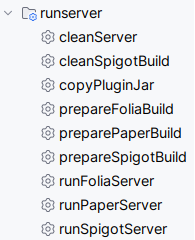
You can also run the server directly from IntelliJ IDEA by clicking the task in the Gradle tab:
- Open the Gradle tab (usually on the right side)
- Navigate to Tasks → runServer
- Double-click
runSpigotServer,runPaperServer, orrunFoliaServer
Server Directory Structure
After running the server, the following directory structure is created:
your-project/
└── server/
    ├── work/                  # Server working directory
    │   ├── plugins/           # Plugin jars are copied here
    │   ├── world/             # World data
    │   ├── server.properties  # Server configuration
    │   └── eula.txt           # Auto-accepted EULA
    ├── snapshot/              # Snapshot files (copied to work on each run)
    ├── build-tools/           # Spigot BuildTools directory
    └── paper/                 # Paper/Folia downloads
Using Snapshot Directory
The server/snapshot directory is useful for persisting configurations across server runs. Any files placed in this directory will be copied to server/work when the server starts.
Example: To persist a custom server.properties:
- Create
server/snapshot/server.propertieswith your desired settings - Run the server - the file will be copied automatically
Debugging
Remote Debugging with IntelliJ IDEA
To enable remote debugging, add the debug JVM arguments:
- Kotlin DSL
- Groovy
runServer {
    version = "1.21"
    javaVersion.set(JavaVersion.VERSION_21)
    args.set(listOf(
        "-agentlib:jdwp=transport=dt_socket,server=y,suspend=n,address=*:5005"
    ))
}
runServer {
    version = "1.21"
    javaVersion = JavaVersion.VERSION_21
    args = ["-agentlib:jdwp=transport=dt_socket,server=y,suspend=n,address=*:5005"]
}
Then in IntelliJ IDEA:
- Go to Run → Edit Configurations
- Click + and select Remote JVM Debug
- Set the port to
5005 - Click OK
- Start your server with
./gradlew runPaperServer - Click the Debug button to attach the debugger
Hot Reload with DevTools
Fairy includes a devtools module that enables hot-reloading of your plugin code during development. The classpath is automatically configured when running the server.
For hot-reload to work properly, make sure your project includes the fairy-devtools module in your dependencies.
Version Compatibility
| Minecraft Version | Minimum Java Version |
|---|---|
| 1.8.x - 1.16.x | Java 8 |
| 1.17.x - 1.20.4 | Java 17 |
| 1.20.5+ | Java 21 |
Make sure your javaVersion setting matches the requirements for your target Minecraft version. The server will fail to start if the Java version is incompatible.
Multi-Module Projects
For projects with multiple modules, you can include additional projects as plugins:
- Kotlin DSL
- Groovy
// In root build.gradle.kts
runServer {
    version = "1.21"
    javaVersion.set(JavaVersion.VERSION_21)

    projects.set(listOf(
        project(":core"),
        project(":addon-pvp"),
        project(":addon-economy")
    ))
}
// In root build.gradle
runServer {
    version = "1.21"
    javaVersion = JavaVersion.VERSION_21

    projects = [
        project(":core"),
        project(":addon-pvp"),
        project(":addon-economy")
    ]
}
All specified projects will be built and copied to the plugins folder.
Common Issues
BuildTools Fails to Download
If BuildTools fails to download, you can specify a custom URL:
runServer {
    version = "1.21"
    buildToolUrl.set("https://your-mirror.com/BuildTools.jar")
}
Server Crashes on Startup
- Check that your
javaVersionmatches the Minecraft version requirements - Ensure you have enough memory allocated (use
argsto set-Xmx) - Check the server logs in
server/work/logs/
Plugin Not Loading
- Make sure your project has the
io.fairyprojectplugin applied - Verify the plugin jar is being copied to
server/work/plugins/ - Check for errors in the server console
Production Deployment
When you're ready to deploy your plugin to production, use the shadowJar task to create a distributable jar:
./gradlew shadowJar
The plugin jar will be generated in build/libs directory.
For more information about packaging and the fairy-lib-plugin, see the Preparing Environment guide.